Talking Head

Presenter video

Create a presenter clip with talking head video ai

Start with a clear face and a short message, then preview how the voice and facial movement work together. Talking Head helps you plan a focused clip before you share it.

Review the result before sharing
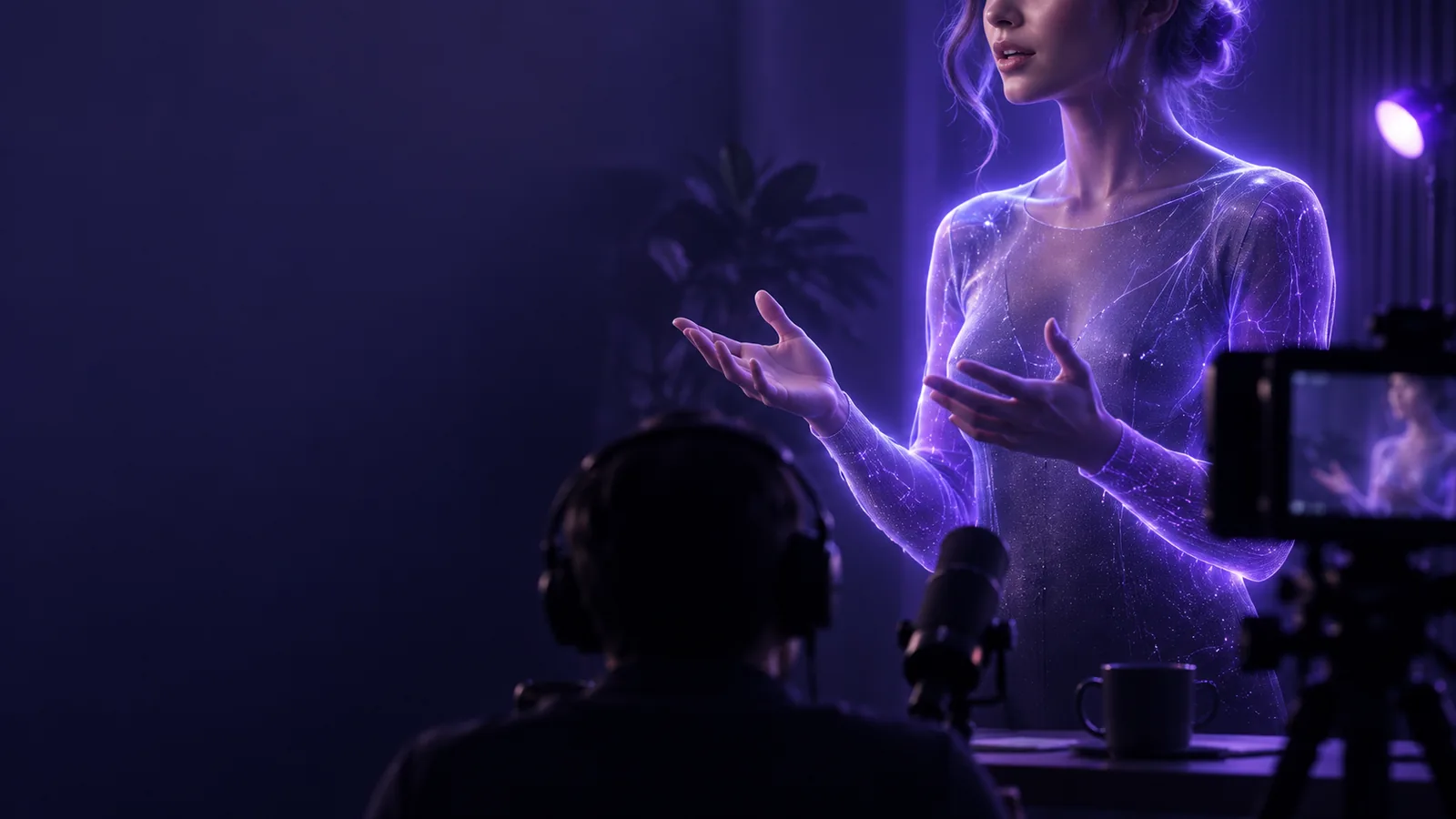
Talking Head presenter video illustration

A talking head clip keeps attention on a face delivering a concise point. Choose the starting material that fits your message, then check the result as a viewer would.

Three ways a digital presenter earns its place

The useful mechanism is not motion alone: a recognizable speaker, an intelligible message, and framing that suits the audience must work together.

Course creator

Introduce one lesson with a consistent on-screen character rather than opening every module with a different visual.

A familiar face gives learners an immediate cue about who is speaking; keep the explanation short enough to follow without supporting slides.

talking head avatar
Small-team communicator

Draft a brief update when the written announcement feels impersonal, but a full camera session would slow the message down.

A spoken first pass can make the tone easier to judge; review names, dates, and pronunciation before sharing.

ai talking head

Independent presenter

Test whether a portrait-led introduction fits a channel before committing to a recurring format.

A short sample reveals whether the face, voice, and pacing feel coherent at the size viewers will actually watch.

talking head avatar

Build a short clip, step by step

Treat the first output as a draft. A clear source and a script written for speech make the preview more useful than a long, densely worded prompt.

  1. 1

    Choose a suitable portrait

    Use an image you have permission to animate. A front-facing, unobstructed face gives the motion a clearer reference than a profile, heavy shadow, or crowded group photo.

  2. 2

    Write for the ear

    Open with the point, use short sentences, and spell out unusual names if pronunciation matters. Describe the intended tone without expecting a prompt to fix unclear wording.

  3. 3

    Preview and revise

    Watch the mouth at normal playback speed, listen for mispronounced words, and check that the framing works on a phone. Rewrite the script or change the source portrait if it feels unnatural.

Look past the still frame

A convincing portrait is only the starting point. Judge the speaking version by its timing, expression, and clarity over the entire message.

  • Source portrait concept
  • Speaking video concept

These images illustrate the workflow, not a verified before-and-after generation. Review your own clip for lip timing, facial artifacts, and audio quality.

Illustration of a static presenter portrait
Illustration of a presenter video concept

Limits and edges to check before sharing

Generated motion can help present a message, but it cannot validate what the speaker says or guarantee that a familiar face will look natural in every frame.

  • It cannot establish consent

    A portrait being available online does not mean its subject agreed to appear in a speaking video.

    WorkaroundUse your own image or obtain clear permission from the person depicted.

  • It cannot rescue a weak source

    Blur, occluded lips, and extreme head angles leave less reliable detail for facial motion.

    WorkaroundTry a sharper, evenly lit, front-facing portrait and compare the preview.

  • It cannot verify your script

    A fluent delivery may make an incorrect date or claim sound more authoritative than it is.

    WorkaroundFact-check the text separately and listen through the final audio.

  • It cannot replace every camera performance

    Nuanced emotion, spontaneous gestures, and natural interaction with objects are difficult to convey through a portrait-led clip.

    WorkaroundRecord a person on camera when those details carry the meaning.

Choose the production method that fits the message

A talking head format can be generated or recorded. This comparison is a planning guide, not a promise about the quality of any particular output.

1

Starting material

Portrait-led AI clip

A permitted portrait and written speech

Camera recording

A person delivering the speech on camera

2

Script changes

Portrait-led AI clip

Revise text and make another preview

Camera recording

Deliver and record the revised lines again

3

Performance

Portrait-led AI clip

Generated voice and facial motion need review

Camera recording

The speaker controls expression and emphasis directly

4

Physical demonstrations

Portrait-led AI clip

A face-focused frame is a poor fit

Camera recording

The speaker can show objects and gestures

5

Identity and consent

Portrait-led AI clip

Confirm permission to animate the portrait

Camera recording

Confirm permission to record and publish the person

6

Best first check

Portrait-led AI clip

Inspect synchronization and pronunciation

Camera recording

Inspect sound, lighting, and delivery

Make a draft you can actually review

Start with a short presenter message

Pick a portrait you are allowed to use and write a few sentences you would say aloud. Preview the speaking clip, then change the script or source if the result does not serve the message.

Create presenter clip
  • Use a clear, front-facing image
  • Keep the first script brief
  • Check the finished clip before sharing

Questions about AI presenter videos

It is a way to create a video centered on a speaking face with AI-generated elements such as facial motion or voice. The result still needs human review, especially when the face represents a real person.

A single portrait can be a starting point for a portrait-led speaking clip. A clear, front-facing image is easier to assess than one with obscured features; preview the result rather than assuming the still image predicts its quality.

Not necessarily, but a mismatch may confuse viewers or imply that someone said words they never spoke. Use a voice and presentation you have the right to use, and make the generated nature of the clip clear when that context matters.

Choose a camera recording when expressive performance, live interaction, or a hands-on demonstration is central to the message. A generated portrait-led clip is better suited to a short, scripted explanation that you can inspect closely before publishing.

Start creating
Start creating