Teacher
A detailed bookshelf pulls attention away from an on-screen definition.
Simplify the setting and leave a clear area beside the talking head for the key term.
talking head video templateScene planning
The setting behind a talking head can make an explanation feel clear and credible—or distract from it. Start with a quiet frame, then decide whether to keep your room, use a backdrop, or replace the scene.
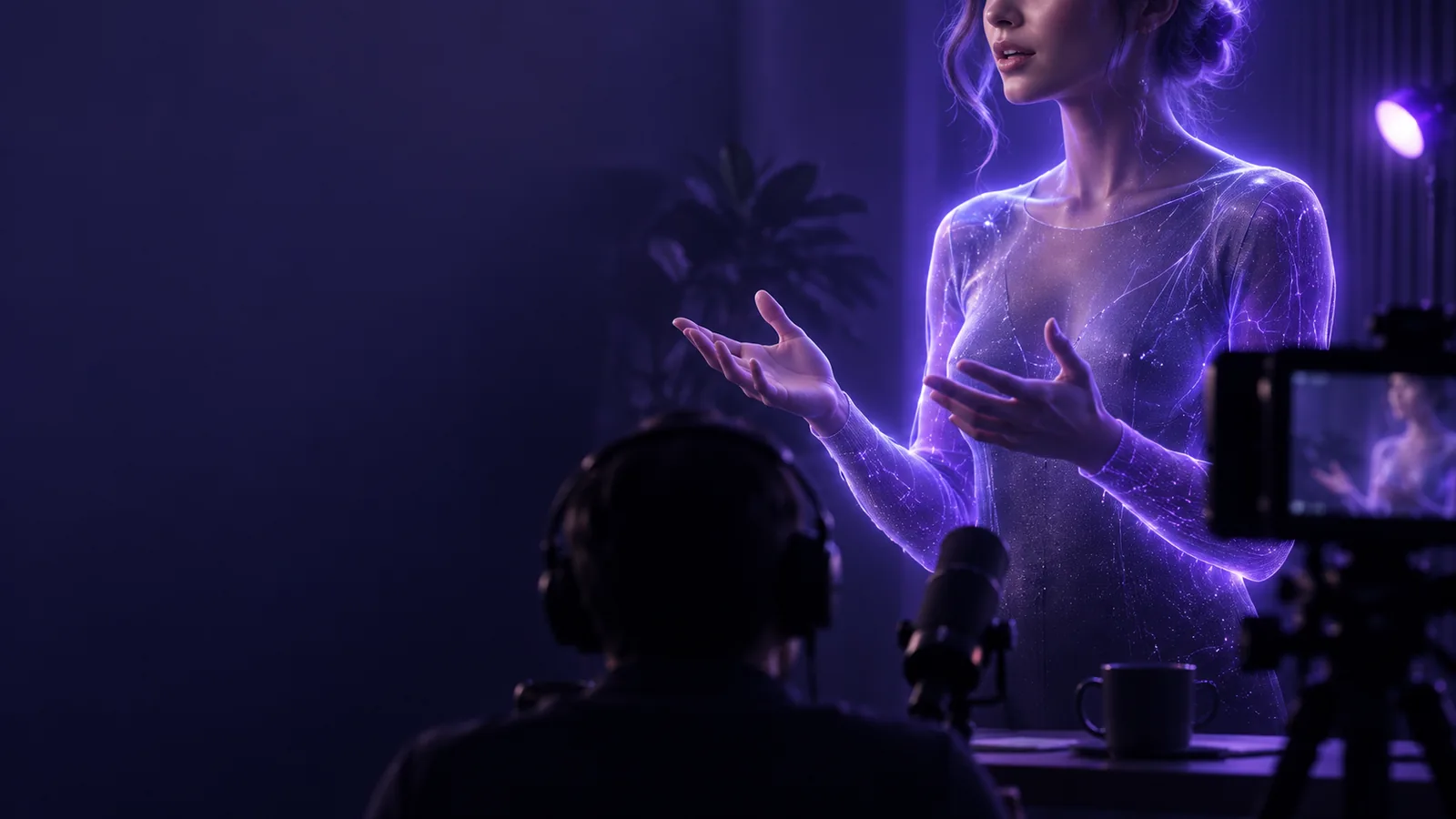
Before choosing a background, check the source footage. A clean recording gives you more options than a busy frame with poor lighting.
Use a steady talking head clip with the face visible and enough space around the shoulders for captions or a tighter crop. Avoid heavy motion blur, which makes the subject harder to separate from the scene.
Look for even light on the face and a visible difference between the speaker and what is behind them. If hair or clothing blends into the background, improve the recording before attempting replacement.
Decide where the video will appear and reserve room for text. Check that any image or room detail behind the talking head remains legible after the frame is cropped.
For a short explanation, record the speaker against a tidy wall, review the framing, and add only the scene detail the message needs.
A real room is often the simplest choice. A replacement background offers more visual control, but it also creates edges and lighting to inspect.
Real room or physical backdrop
Replaced scene
Real room or physical backdrop
Tidy the visible area and position the camera.
Replaced scene
Choose a scene and prepare footage for subject separation.
Real room or physical backdrop
Light the speaker and room together while recording.
Replaced scene
Match the speaker’s recorded light to the new scene.
Real room or physical backdrop
Edges remain part of the original recording.
Replaced scene
Fine hair and fast gestures may show cutout artifacts.
Real room or physical backdrop
Keep the same physical setup across sessions.
Replaced scene
Reuse one scene, then check each clip for a convincing match.
Real room or physical backdrop
Changing the setting may require another recording.
Replaced scene
The scene can change in editing if separation is clean.
Real room or physical backdrop
A natural talking head presentation with little compositing.
Replaced scene
A controlled look when the original setting is unsuitable.
Most background problems become noticeable at the edges of the speaker or where text meets the scene. Review the full clip, not just one still frame.
A detailed bookshelf pulls attention away from an on-screen definition.
Simplify the setting and leave a clear area beside the talking head for the key term.
talking head video templateA bright virtual office sits behind a speaker recorded in dim light.
Choose a scene with similar lighting or correct the footage before replacing the background.
talking head video with animationHand gestures reveal flickering edges against a high-contrast scene.
Test moving sections, soften the scene, or retain the real room rather than hiding the defect with more graphics.
talking head video templateA platform crop cuts off the speaker and reveals distracting objects at the frame edge.
Check the intended crop before recording and keep important details near the center.
talking head video with animationIllustrative comparison, not an edit of the same frame. When checking your own video, watch for readable text, stable subject edges, and a background that stays secondary to the speaker.

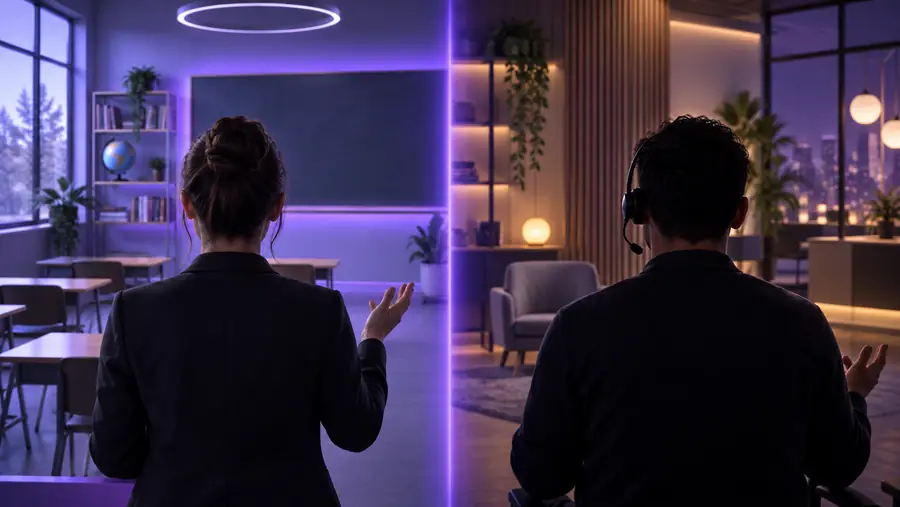
Choose a scene that helps viewers follow the voice and face. Keep the talking head easy to see, leave space for essential text, and review the complete video before using a replacement background.
Create a videoA simple, relevant setting is usually a good starting point. The best choice keeps the face distinct, leaves room for any text, and does not draw attention away from what the speaker says.
You can replace a scene in editing if the speaker can be separated cleanly from the original footage. Review hair, hands, and quick movements throughout the talking head clip, since a single preview frame may hide artifacts.
Not always. A tidy real room needs no replacement, while some editing methods can separate a subject without a green screen. A physical screen may help when you need a consistent replacement, but lighting and clean edges still matter.
The speaker and scene may have conflicting light, perspective, sharpness, or color. Cutout edges around hair and moving hands can also reveal the effect, so check the finished video at normal playback speed.
Use them only when they help explain a point and remain readable in the final crop. Keep important words away from the speaker’s face, and avoid placing dense detail behind captions.