Teacher
Introduce a lesson with a clear portrait and a two-sentence explanation.
Review whether names and subject terms sound right before preparing the rest of the lesson.
ai talking head video generator freeBrowser-first workflow
Start with a clear portrait and a short script, then check the preview before exporting. Talking Head helps you plan the clip without assuming every browser tool offers the same free features.
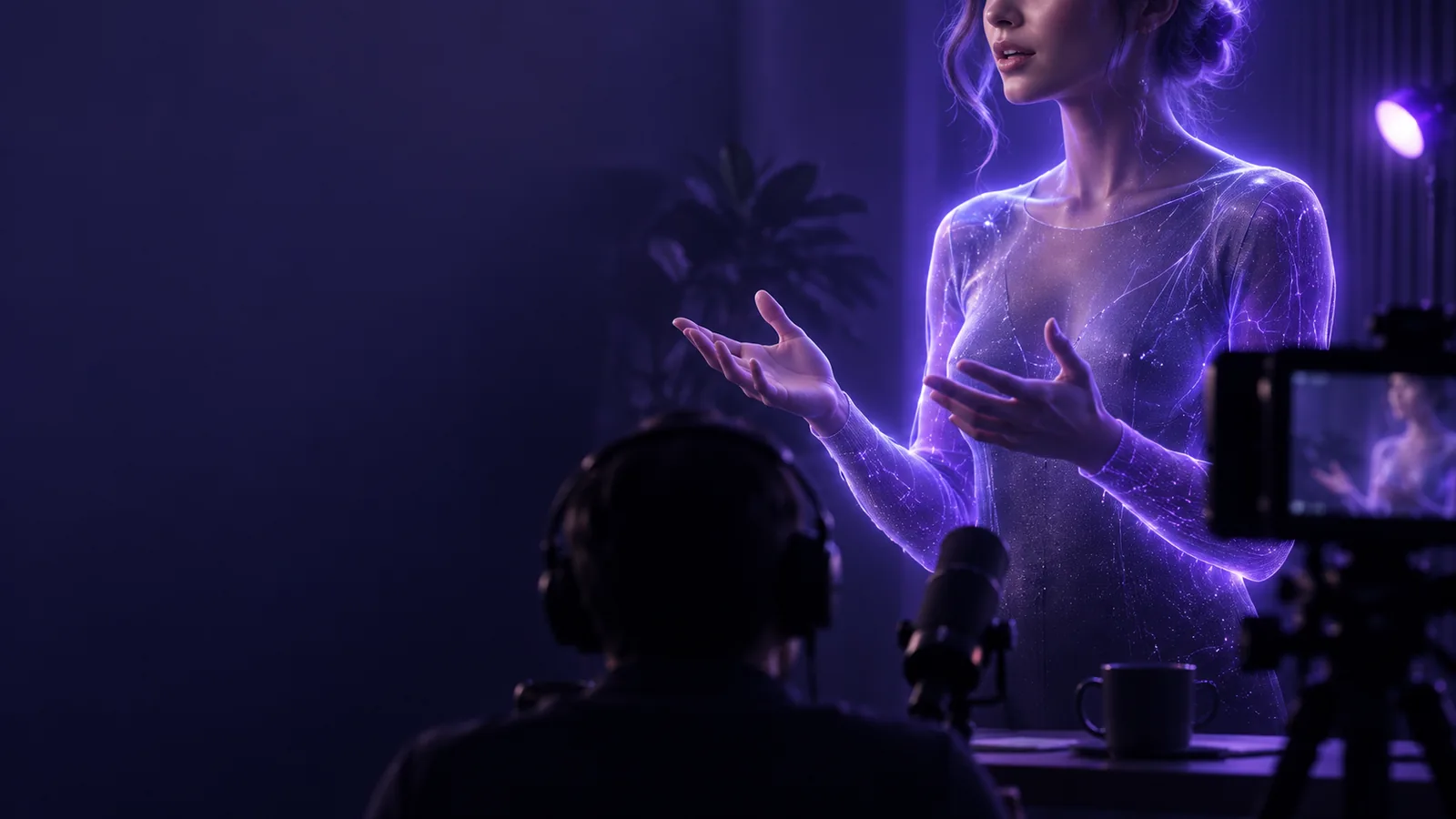
A free talking head online still needs usable source material. Preparing it first reduces retries, even when the tool runs entirely in your browser.
A face photo shows appearance, not what the speaker should say. Vague instructions can produce a clip that misses your message.
WorkaroundWrite two or three short sentences and read them aloud once before generating.
Heavy shadows, a profile angle, hair across the mouth, or a tightly cropped chin make a talking head harder to animate convincingly.
WorkaroundChoose a sharp, front-facing image with the full face visible and even light.
Available lengths, output quality, watermarks, and download options can differ between tools and may change.
WorkaroundInspect the preview and current export screen before committing to a longer script.
Use a small test to find out whether your portrait, wording, and chosen tool work together before making a longer talking head video.
Pick a portrait you have permission to use. Draft a 15–20 second introduction with straightforward punctuation and mark any names that need a particular pronunciation.
Describe the speaker, tone, and background in the prompt box, then continue to the tool. Add the portrait and script if its workflow asks for them separately.
Play the entire talking head preview. Check the first and last words, mouth movement, pronunciation, framing, and whether the available export meets your needs.
Choose the next guide by the question you need to answer: which generator to try, which finished-video format to make, or how the browser workflow is organized.
A generated portrait clip and a camera recording can both become a talking head video, but they solve different access problems.
Portrait-to-video tool
Camera recording
Portrait-to-video tool
A permitted portrait plus written or recorded speech
Camera recording
A person available to speak on camera
Portrait-to-video tool
A browser and the inputs accepted by the chosen tool
Camera recording
A camera, microphone, and recording space
Portrait-to-video tool
Edit the script and generate a new take
Camera recording
Record the changed line or another take
Portrait-to-video tool
Generated motion that must be checked for sync
Camera recording
The speaker's actual expression and movement
Portrait-to-video tool
Depends on the voice and audio inputs offered
Camera recording
The speaker controls delivery during the take
Portrait-to-video tool
Check length, watermark, and download availability
Camera recording
Check the recording and editing apps you use
Match the first test to the person who will watch it. A short, specific talking head clip is easier to judge than a full presentation.
Introduce a lesson with a clear portrait and a two-sentence explanation.
Review whether names and subject terms sound right before preparing the rest of the lesson.
ai talking head video generator freeMake a brief update when nobody is available to film a new take.
Check lip sync and tone against the written message before sharing it.
free talking head videoTest a single greeting before planning a series of speaker clips.
Discover the browser workflow and its current export restrictions early.
talking head online freeTry a neutral backdrop so the speaker does not compete with on-screen text.
Decide whether the background leaves enough room for captions.
talking head video backgroundThe most common disappointment is assuming a usable source image guarantees a usable finished clip. Treat the first result as a test, not a final deliverable.
Illustrative comparison, not a promised result. If the mouth obscures words, shorten the sentence or try a clearer portrait. If the framing cuts off captions, adjust the layout before exporting.
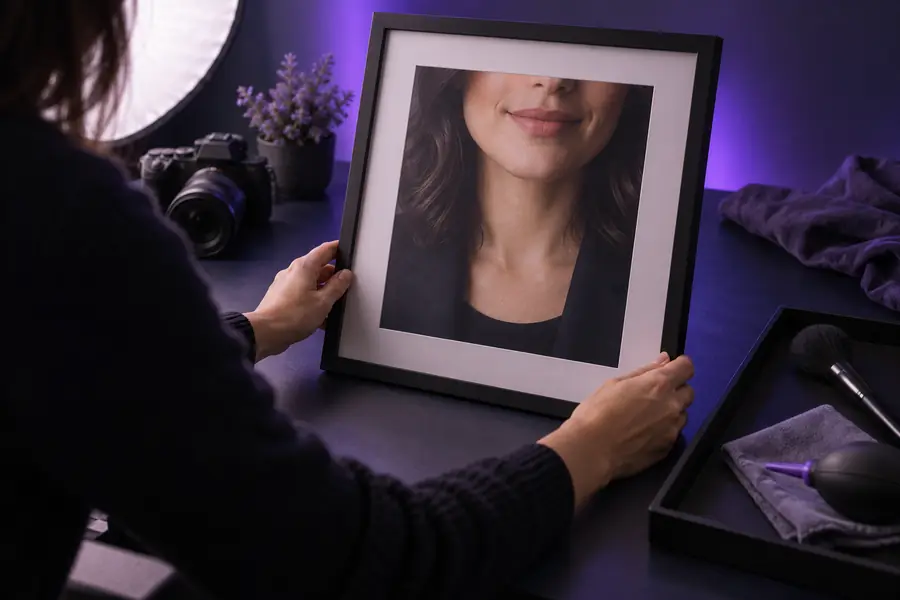
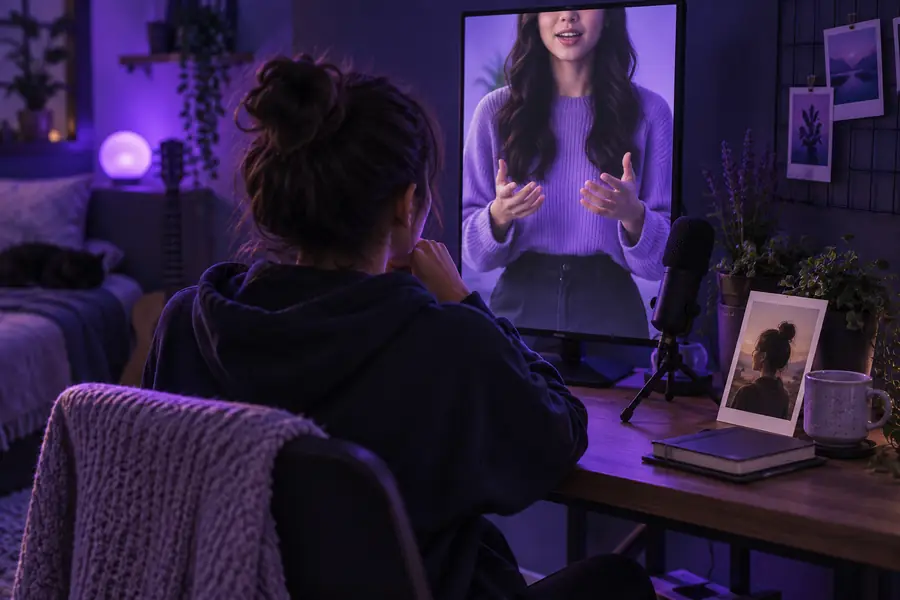
Bring a portrait you may use and a concise script. Generate a preview, listen all the way through, and confirm the current download conditions before relying on the clip for a larger project.
Create speaker clipA portrait-to-video tool may let you start with a still image instead of a camera recording. You still need permission to use the image, and the available free generation and export options depend on the tool.
Prepare a clear, front-facing portrait and a short script. Some tools also accept recorded audio, while others provide a voice option; check the input screen to see what is actually supported.
That depends on the tool's current output rules. Check its preview and export screen rather than assuming the downloaded file will match the on-screen preview.
Unclear facial features, difficult pronunciations, or long, dense sentences can make a generated clip harder to follow. Try a sharper portrait and shorter lines, then review the new preview before exporting.
Use a portrait only when you have the necessary rights and the person's permission. Do not present a generated talking head as a real recording of someone who did not make it.