How to make a talking head video that holds attention
Start with one useful point, record your voice clearly, and remove anything that slows the message down. This guide takes you from a first outline to a finished talking head clip, whether you film yourself or prepare a script for a presenter.
You can begin with a phone or webcam. Prepare the message and the recording space before worrying about effects.
Choose a starting point
The same core workflow serves different speakers, but your preparation should match the job the video needs to do.
First-time presenter
You have a useful idea but tend to restart whenever you miss a word. Write a short outline with an opening, one main point, and a closing sentence. Record each part separately instead of trying to deliver the whole script perfectly in one take.
You get manageable clips that can be joined without hiding the meaning of what you said.
You want a direct-to-camera clip without a studio setup. Put the phone at eye level, face a window, and record ten seconds of speech to check whether the room sounds echoey before making a full take.
You catch framing and audio problems while they are still easy to fix.
You already have a recording and need to turn it into a watchable video. Make an audio-first cut, close obvious gaps, then add captions and a supporting image only where they clarify a spoken point.
The edit follows the speaker rather than competing with them.
You need viewers to remember a process, not just watch your face. Give each part of the explanation a distinct purpose and show an example at the moment you mention it.
Viewers can connect the spoken instruction to something concrete on screen.
Work in this order so a weak script or noisy recording does not become an editing problem later.
1
Write for the ear
Choose one question your viewer wants answered. Open with the answer or a specific reason to keep watching, then explain the supporting points in everyday language. Read the outline aloud: if a sentence is hard to say naturally, shorten it. Mark any phrase that needs an on-screen example.
2
Set the frame and sound
Place the lens near eye level and leave a little space above your head. Face a soft light source rather than putting a bright window behind you. Close noisy doors, silence notifications, and make a short test recording. Listen through headphones; clear speech matters more than an elaborate background.
3
Record in short sections
Look toward the lens, pause before and after each section, and speak at a pace you can sustain. If you stumble, stop, breathe, and repeat the sentence from its beginning. Keep the camera and lighting in place between takes so the talking head footage matches when you join it.
4
Edit and check the export
Select the clearest take for each point and cut repeated ideas, long silences, and distracting mistakes. Add captions that match the final audio, then use a visual only when it helps explain what is being said. Watch the exported video with sound on and off to catch clipped words, unreadable text, or a weak ending.
common errors and fixes
A simple workflow cannot rescue every recording. Check these problems before you spend time polishing a cut.
Editing cannot fully repair distorted speech
If the microphone is overloaded or the voice is buried under traffic, noise removal may make the speaker sound artificial.
WorkaroundMove closer to the microphone, reduce background noise, and record the affected line again. Test playback before continuing.
Captions cannot clarify a wandering explanation
On-screen words help people follow a clear point, but they cannot give structure to a talking head script that changes subject halfway through.
WorkaroundRewrite the opening around one question and move unrelated ideas into a separate clip.
A generated presenter cannot verify your claims
A polished face and voice do not establish that names, instructions, demonstrations, or technical details are correct.
WorkaroundFact-check the script and review the final video for pronunciation, timing, and misleading visual matches.
One framing choice will not fit every destination
Text near the edge may be cropped or covered by controls when a video is placed in a different layout.
WorkaroundChoose your destination before editing, keep essential text away from the edges, and preview each intended version.
advanced tips
Once the basic cut works, improve the viewer’s understanding rather than adding motion for its own sake.
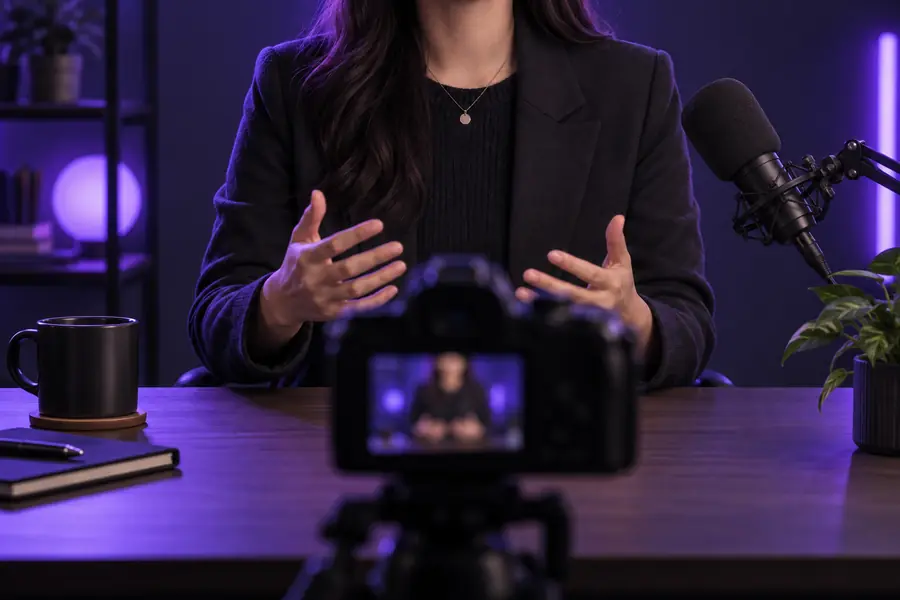
Basic framing
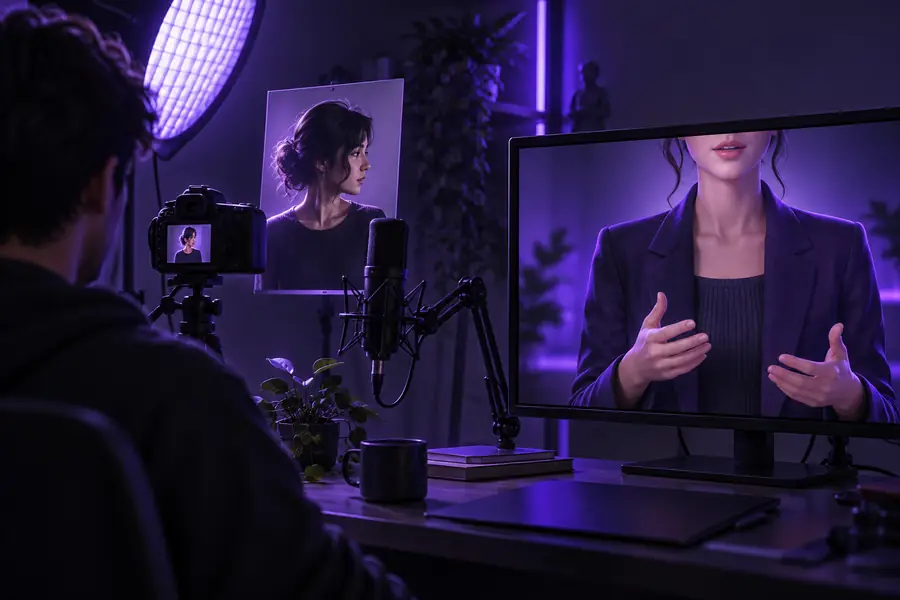
Planned presentation
These are illustrative references, not before-and-after frames from the same recording. In your own edit, compare the first cut with a revised version: is the opening clearer, is every visual relevant, and can you follow the message without sound? If a cut feels abrupt, use a relevant close-up or example to bridge it—not an unrelated effect.
Put the plan into motion
Start with the message, then build the video
Draft a short script for one audience and one outcome. Whether you record yourself or use a presenter workflow, review the spoken words, the audio, and the final export before sharing your talking head video.
Choose one question to answer, write a brief spoken outline, and make a test recording with your camera at eye level. Record in sections, select the clearest takes, and check the exported clip before sharing it.
A phone or webcam, a steady position, usable light, and a quiet room are enough to start. Test the microphone with a short spoken sample; if the sound is unclear, improve the room or microphone position before adding other equipment.
Use whichever lets you sound clear and natural. Brief notes often work well for personal explanations, while a full script helps when wording must be precise or a presenter will read the text.
First remove repetition and get to the point sooner. Then add a relevant example, close-up, or on-screen phrase where it helps the viewer understand something specific, rather than changing the image on a fixed schedule.
Watch the exported file, not just the editing preview. Listen for missing words, confirm that captions match the speech, and check that important text remains readable in the layout where the video will appear.